Fill Button Tutorial
In this tutorial, you will build an animated button with GSAP and SplitText.
1) Setup & Imports
First, install GSAP, the React plugin. Then register "SplitText". You will also need to import useID if you want to use it multiple times in your page.
1"use client"
2import React, { useEffect, useId } from "react"
3import gsap from "gsap"
4import { SplitText } from "gsap/all"
5import { useGSAP } from "@gsap/react"
6
7gsap.registerPlugin(SplitText)
2) Core Concept
Now we need to understand how the button actually works. It is basically just a <div> with two splitTexts and a simple scale animation, so lets do that and look how that looks.
1useGSAP(() => {
2  gsap.set(`#${id} .text2`, { yPercent: 100 })
3  text1Ref.current = new SplitText(`#${id} .text1`, { type: "lines", mask: "lines" })
4  text2Ref.current = new SplitText(`#${id} .text2`, { type: "lines", mask: "lines" })
5  gsap.set(`#${id} .text2`, { display: "block", yPercent: 0 })
6  gsap.set(text2Ref.current.lines, { yPercent: 100 })
7})
8
9function killAllTweensAndResetSplits() {
10    gsap.killTweensOf(`#${id}`)
11    text1Ref.current && gsap.killTweensOf(text1Ref.current.lines)
12    text2Ref.current && gsap.killTweensOf(text2Ref.current.lines)
13    text1Ref.current && text1Ref.current.revert()
14    text2Ref.current && text2Ref.current.revert()
15  }
16
17  function handleEnter() {
18    killAllTweensAndResetSplits()
19    text1Ref.current = new SplitText(`#${id} .text1`, {type: "lines", mask: "lines"})
20    text2Ref.current = new SplitText(`#${id} .text2`, {type: "lines", mask: "lines"})
21
22    gsap.set(`#${id} .text2`, {display: "block", yPercent: 0})
23
24    gsap.set(text2Ref.current.lines, {yPercent: 100})
25
26    gsap.to(`#${id}`, {scale: 1.06, duration: 0.3, ease: "power2.out"})
27    gsap.to(`#${id}`, {scale: 1.03, duration: 0.5, delay: 0.3, ease: "power2.out"})
28
29    gsap.to(text1Ref.current.lines, {yPercent: -100, duration: 0.5, ease: "power2.out", stagger: 0.05})
30    gsap.to(text2Ref.current.lines, {yPercent: 0, duration: 0.5, ease: "power2.out", stagger: 0.05})
31  }
32
33  function handleLeave() {
34    killAllTweensAndResetSplits()
35
36    text1Ref.current = new SplitText(`#${id} .text1`, {type: "lines", mask: "lines"})
37    text2Ref.current = new SplitText(`#${id} .text2`, {type: "lines", mask: "lines"})
38
39    gsap.to(`#${id}`, {scale: 1, duration: 0.3, ease: "power2.out"})
40
41    gsap.to(text1Ref.current.lines, {yPercent: 0, duration: 0.5, ease: "power2.out"})
42    gsap.to(text2Ref.current.lines, {yPercent: 100, duration: 0.3, ease: "power4.out"})
43  }
44
45 <div
46      id={id}
47      onMouseEnter={() => handleEnter()}
48      onMouseLeave={() => handleLeave()}
49      className={`relative flex items-center justify-center w-full bg-woodsmoke-light light:bg-athensgray-light overflow-hidden h-full cursor-pointer shadow-(--inset_shadow) border-white light:border-black px-4 py-2 rounded-2xl ${className}`}>
50      <span className="text1 relative font-medium">{text1}</span>
51      <span className="text2 text-white light:text-black absolute font-medium">{text2}</span>
52 </div>
53
54
This is how it looks now:
3) SVG paths
Now we're almost finished and just need to add the cool svg path animation. This one is a little bit more complicated but I've drawn a sketch to show you how it works
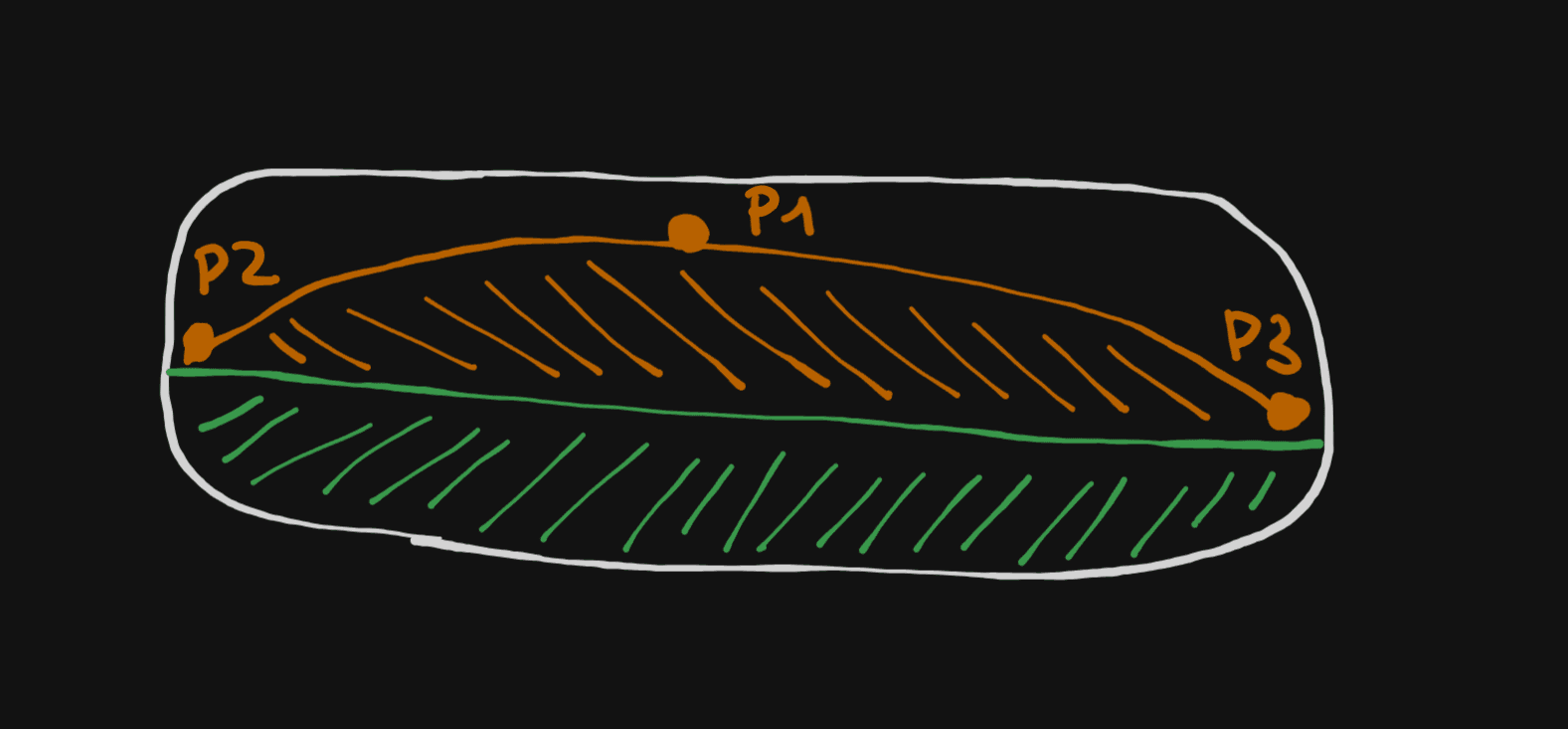
We have to svg paths, the first one is just a rectangle (green one) and the other (orange) is a filled arc which has the three control points P1, P2 and P3. Before / after hovering the button, both these svg paths are hidden just a little bit under the visible area of the button thanks to the overflow-hidden class.
Now when we hover, the bottom svg path will just come up. The filled orange svg arc will move a little bit more complicated to achieve the cool desired look. First, the control points P2 and P3 will move synced with the top corners of the rectangle. The P1 point will move faster to the top of the button but then wait for the points P2 and P3 (remember, synced to top corners of rectangle) to also move to the top to create this "fill" effect. Thats it!
Heres is an colored and slowed down example with the colored svg paths:
For this you just need to add this stuff:
1//in the button
2<svg className="svg absolute inset-0 w-full h-full fill-orange-500 light:fill-black" viewBox="0 0 100 100" preserveAspectRatio="none">
3  <rect width="300" x={"-100"} y={200} height="100" className="fill-green-500" />
4  <path d={initialPath} />
5</svg>
6
7// variables:
8const initialPath = "M 0 200 Q 50 20 100 200"
9const hoverPath = "M 0 0 Q 50 0 100 0"
10
11const ease = "circ.out"
12
13// in handleEnter function:
14gsap.to(`#${id} .svg path`, {duration: 3, ease: ease, attr: {d: hoverPath}})
15gsap.to(`#${id} .svg rect`, {duration: 3, ease: ease, attr: {y: "0"}})
16
17// in handleLeave function:
18gsap.to(`#${id} .svg path`, {duration: 0.5, ease: ease, attr: {d: initialPath}})
19gsap.to(`#${id} .svg rect`, {duration: 0.5, ease: ease, attr: {y: "200"}})
20